Course list http://www.c-jump.com/bcc/
The purpose of this assignment is to write a simple text editor app using FLTK classes
Fl_Button // New, Open, and Save
Fl_Text_Editor // multi-line editor box
Fl_Text_Buffer // text editor data buffer
Fl_Native_File_Chooser // native file chooser dialog
Fl_Output // status line display
The user can open and save a file, as well as clear the text area by clicking New:
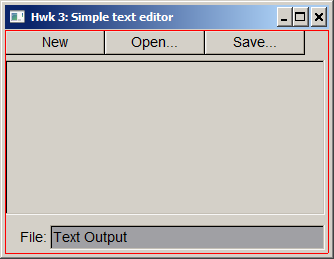
The status line at the bottom of the window should display the file path and name. When the user clicks New, or when the application is just getting started, the path is blank and the file name is unknown.txt. When the user clicks Open... or Save... the program should display the standard file chooser dialog.
Important: Before creating your ZIP archive :
Open your project in Visual Studio, click Build -> Clean Solution .
Important: Close your project in Visual Studio, File -> Close Solution and exit Visual Studio.
Open Windows File Explorer, click View -> check Hidden Items .You need to do this only once, this option is sticky.
Open your project directory in Windows File Explorer.There should be visible a hidden subdirectory named .vs.
The .vs directory in Microsoft Visual Studio is officially known as the Visual Studio solution "user options" directory. The .vs directory is automatically created in the same directory as your solution file(.sln) and contains all sorts of garbage for "improved performance" and "preserved developer preferences".It's size is huge and can easily exceed 30 Megabytes or more.
Important: Click .vs directory in Windows File Explorer and permanently delete .vs by clicking SHIFT Delete (press SHIFTand Delete keys simultaneously.)
In summary : Clean Solution is now complete and .vs directory is deleted.
Alternatively, you can run clean_before_submit.bat after exiting the Visual Studio.This will automate the cleanup instead of manual deletion. It's never a bad idea to run clean_before_submit.bat script before creating a ZIP arcive of the project.
ZIP you entire project directory in a single ZIP file.
NOTE : Check the size of your ZIP file.If it's larger than 20-30 Kb, it's likely a sign of something wrong, like forgetting to remove the unwanted .vs subdirectoryand so on.
Log on to CIS-255 online , Weekly Assignments, and follow the appropriate upload link to submit your ZIP file.
Note : the system will display an 8 - digit confirmation number once the file is successfully uploaded. You can save the confirmation number for your own records, but this is not a required stepand no further action is needed on your part.