Course list http://www.c-jump.com/bcc/
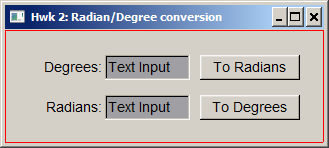
In this assignment you write a GUI application that converts Radians to Degrees and back:
The Trigonometry handout provides sample code and formulas that you might find helpful. Alternatively, it is okay to search for samples on the internet, but please be sure to reference your sources in the program comments.
Use Lab 4 as the starting point for your project. Make a copy of the project and rename it as Hwk_02_radians. Use FLUID to design the user interface. Add callback functions for your buttons to implement the conversions and display results.
You must use double data type when computing the values in your formulas.
Use std::stringstream to convert from character data to double and vice-versa. The following sample demonstrates this kind of data manipulation:
#include <iostream>
#include <string>
#include <sstream>
#define PI 3.14159265
double string_2_double( std::string const& str )
{
std::stringstream buffer( str );
double value = 0.0;
buffer >> value;
return value;
}
std::string double_2_string( double dbl )
{
std::stringstream buffer;
buffer << dbl;
return buffer.str();
}
// Use standard main to have console background:
int main()
{
for (;;) {
std::cout << "Enter a number to convert degrees and radians: ";
std::string str_input;
std::cin >> str_input;
double degrees = string_2_double( str_input );
double radians = degrees * PI / 180;
std::cout << degrees << " degrees == " << double_2_string( radians ) << " radians\n";
}
}
Important: Before creating your ZIP archive:
Open your project in Visual Studio, click Build -> Clean Solution.
Important: Close your project in Visual Studio, File -> Close Solution and exit Visual Studio.
Open Windows File Explorer, click View -> check Hidden Items. You need to do this only once, this option is sticky.
Open your project directory in Windows File Explorer. There should be visible a hidden subdirectory named .vs.
The .vs directory in Microsoft Visual Studio is officially known as the Visual Studio solution "user options" directory. The .vs directory is automatically created in the same directory as your solution file (.sln) and contains all sorts of garbage for "improved performance" and "preserved developer preferences". It's size is huge and can easily exceed 30 Megabytes or more.
Important: Click .vs directory in Windows File Explorer and permanently delete .vs by clicking SHIFT Delete (press SHIFT and Delete keys simultaneously.)
In summary: Clean Solution is now complete and .vs directory is deleted.
Alternatively, you can run clean_before_submit.bat after exiting the Visual Studio. This will automate the clean-up instead of manual deletion. It's never a bad idea to run clean_before_submit.bat script before creating a ZIP arcive of the project.
ZIP you entire project directory in a single ZIP file.
NOTE: Check the size of your ZIP file. If it's larger than 20-30 Kb, it's likely a sign of something wrong, like forgetting to remove the unwanted .vs subdirectory and so on.
Log on to CIS-255 online , Weekly Assignments, and follow the appropriate upload link to submit your ZIP file.
Note: the system will display an 8-digit confirmation number once the file is successfully uploaded. You can save the confirmation number for your own records, but this is not a required step and no further action is needed on your part.